Privacy First
Uploaded files are automatically and permanently deleted within two hours.
Automatic deletion

Record dictation, narration, lecture notes, interview answers or a quick voice-over in your browser and download it as a MP3 file. Already have a recording? Upload it instead – the same converter handles WebM, M4A, WAV, OGG and most other audio formats.
The page is a two-step tool: an in-browser recorder and a server-side converter. The recorder uses the MediaRecorder interface that Chrome, Firefox, Edge and Safari ship with, so there is nothing to install. Conversion runs with ffmpeg, the same open-source engine behind most professional media tools.
Press "Record with your microphone", allow microphone access once, and speak. A level meter and timer show that audio is coming in. You can also upload an existing recording from your phone or computer, or import one from Google Drive.
Listen to the take in the dialog and record again if needed. Select the bitrate (128, 192 or 320 kbps). Then start the conversion.
The upload takes seconds and the conversion usually finishes in less than the length of the recording. Download the MP3 or save it straight to Google Drive from the result page.
Recordings are captured with your browser's native recorder – Opus in WebM on Chrome, Firefox and Edge, AAC in MP4 on Safari – with echo cancellation and noise suppression enabled.
Encoded with LAME through ffmpeg. You choose 128, 192 or 320 kbps in the dialog; 192 kbps is the default and is more than enough for spoken word. Sample rate and channel layout follow the recording (48 kHz mono for most browser recordings).
Besides fresh recordings, the converter accepts MP3, WAV, M4A, AAC, OGG, Opus, FLAC, WebM, MP4, WMA, AIFF, AMR, 3GP and CAF files, so voice memos from any phone work too.
There is no registration, no audio watermark and no limit on how often you use the page. Files are removed automatically: uploads after 30 minutes, results after 2 hours.
Backed by 10+ years of engineering expertise in large-scale data and scientific computing, it’s built for real-world workflows that require uncompromised audio quality, accelerated processing speeds, and reliable, high-level performance.
Uploaded files are automatically and permanently deleted within two hours.
Rated 5 stars on Trustpilot for speed, reliability, and ease of use.
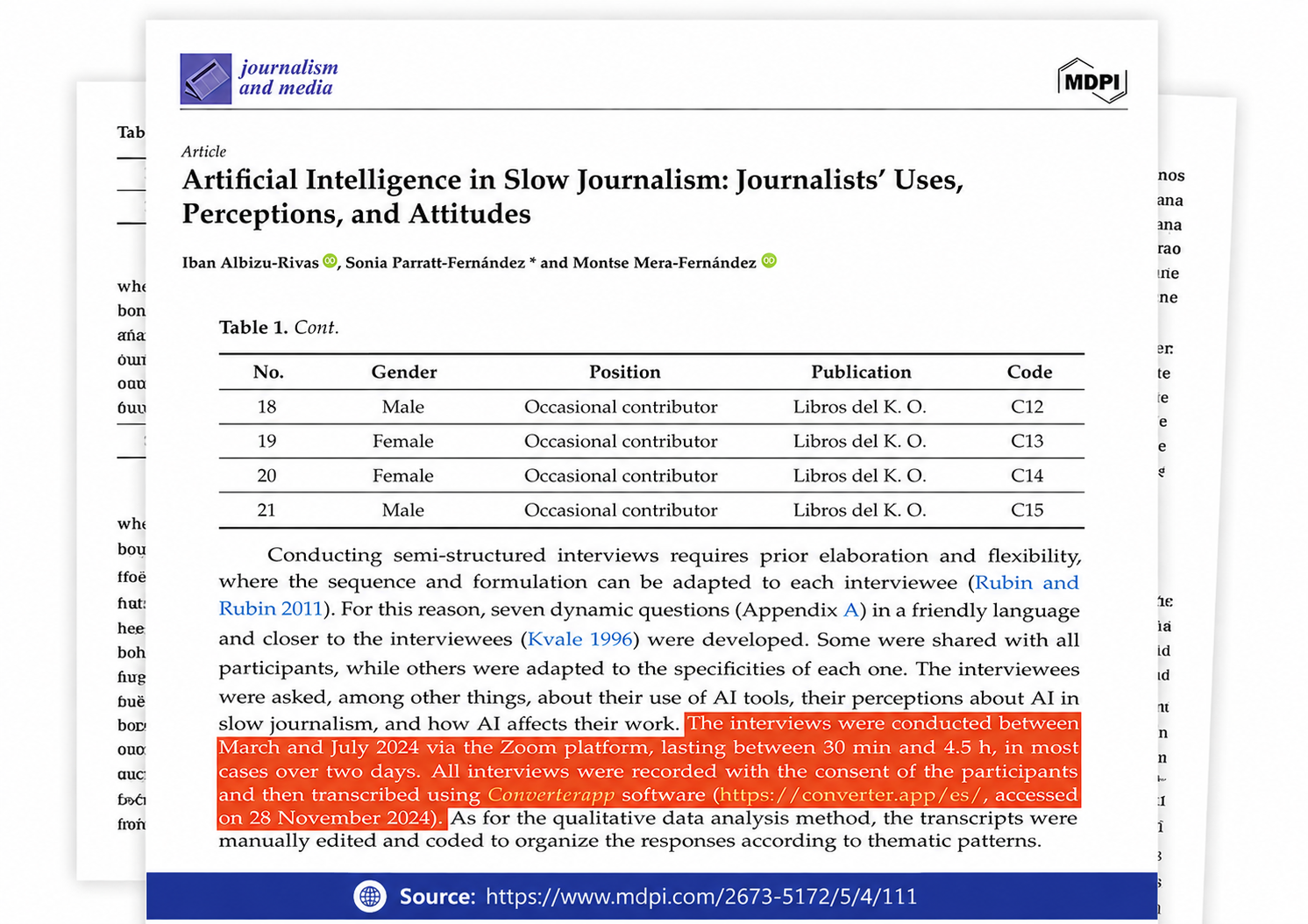
Referenced in published research and used for interview transcription and qualitative data analysis.
Browsers do not record "raw" audio. Chrome, Firefox and Edge capture your microphone as Opus audio inside a WebM container; Safari on iPhone and Mac records AAC inside MP4. Both are already compressed, speech-friendly codecs at 48 kHz (Opus) or 44.1 kHz (AAC).
When you confirm, that file is uploaded over HTTPS to one of our conversion servers, where ffmpeg decodes it and writes MP3 (MPEG-1 Audio Layer III). Encoded with LAME through ffmpeg. You choose 128, 192 or 320 kbps in the dialog; 192 kbps is the default and is more than enough for spoken word. Sample rate and channel layout follow the recording (48 kHz mono for most browser recordings).
The result page offers a download button and a "save to Google Drive" option. The uploaded recording is deleted 30 minutes after it arrived, the converted file 2 hours after it was created.
The converter cannot fix what the microphone did not capture, so a little care before pressing record pays off. Sit 10–20 cm from the microphone, in a room without a running fan or open window. Built-in laptop microphones pick up keyboard and fan noise; a wired headset or a phone held close is usually clearer.
Speak the first sentence, stop, and listen to the preview in the dialog. The level meter should move clearly while you talk but never stay at full height – a meter that is always full means the input is too loud and will distort. Re-record rather than hoping to fix it later.
Browser recordings have echo cancellation and noise suppression switched on. That is ideal for dictation, narration, lecture notes, interview answers or a quick voice-over, but if you record a musical instrument you will get better results by uploading a file from a dedicated recorder app instead.
This page was built for teachers, podcasters, journalists and anyone who thinks faster out loud than on a keyboard. Typical uses we see: recording answers to interview questions for later transcription, leaving a spoken explanation next to a document, narrating a short presentation, producing a quick pronunciation sample for language learners, and capturing an idea before it is gone.
Choose MP3 when the file has to play everywhere or be sent through chat and e-mail. It is the safe default for voice.
If the goal is a written transcript rather than an audio file, the related speech-to-text tool on this site runs the same recorder and sends the audio to a Whisper-based transcription instead.
No account is required and we do not keep a copy of your audio. The recording stays in your browser until you press the button; after conversion the files are deleted on a fixed schedule (uploads 30 minutes, results 2 hours). Google Drive import and export only run when you explicitly pick a file or choose "save to Drive", and we only receive the single file you select.
Limits: 30 minutes per in-browser take, one file per conversion, and the general upload size limit shown on the page. The page is free and ad-supported; there is no watermark, no trial counter and no premium tier for this tool.
No. The audio is kept in your browser's memory while you record and while you listen to it. It is only sent to our server when you confirm in the dialog. If you close the page or cancel, nothing has left your device.
The in-browser recorder stops automatically after 30 minutes; you can start a new take right away. Uploaded files are not limited to that length, but very long files take correspondingly longer to convert.
Current versions of Chrome, Edge, Firefox and Safari on Windows, macOS, Linux, Android and iOS. The page must be opened over HTTPS (it is) and the browser needs permission to use the microphone – look for the microphone icon in the address bar if nothing happens.
Fresh recordings are named after the date and time they were taken, for example recording-2026-10-15-1432, so several takes never overwrite each other. Uploaded files keep their original name.
128 kbps is already transparent for a single voice and gives the smallest files (about 1 MB per minute). 192 kbps, the default, leaves headroom for music beds or several speakers. 320 kbps only makes sense if the recording will be edited again and re-encoded later.
The channel layout follows the recording. Almost all built-in and headset microphones deliver mono, and the MP3 stays mono – which halves the size compared to a stereo file with identical content.